
I’m going to start this blog post on a soap box:
Technology. Grumble, grumble.
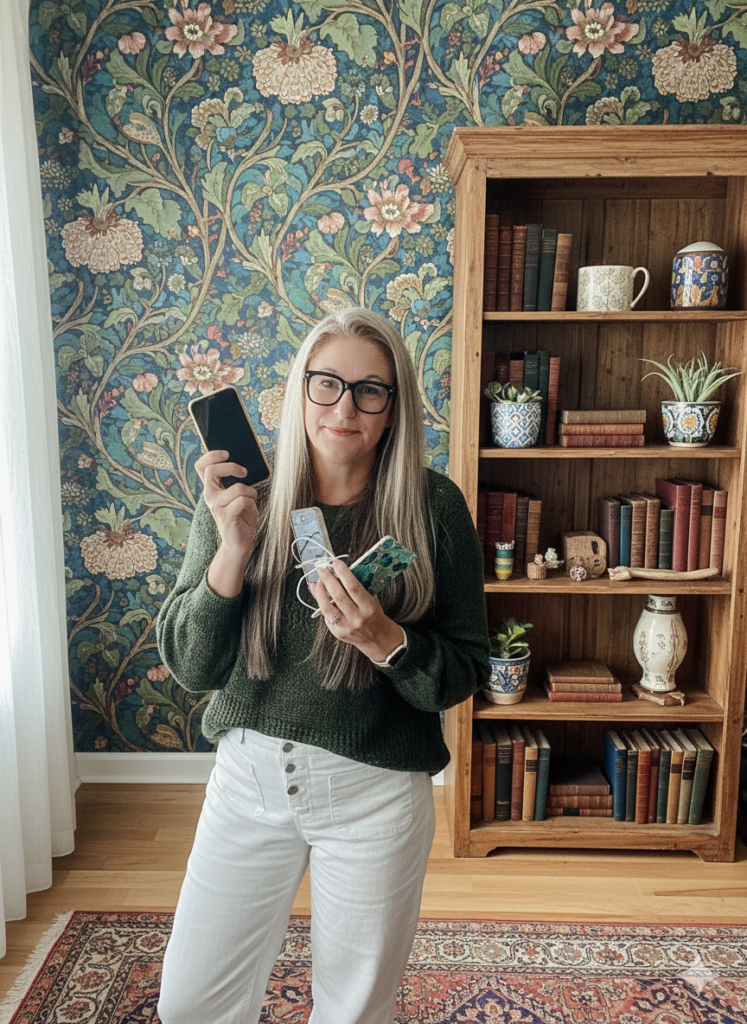
Yes, I’ve studied tech. I’ve enjoyed tech. My alma mater literally has “Technology” in the name (Shout out to RIT!) But, here’s the thing, sometimes I think the industry has done us dirty.
They’ve put an incredible amount of effort into making it mindlessly easy to take an absurd number of photos. (No complaints about that part.)
But the less glamorous side of the equation? Keeping those photos organized. Keeping them safe. Making sure they don’t disappear into the digital abyss….
That part hasn’t exactly received the same love and attention. (Apple. Google. Samsung. I’m talking to you)
Most people don’t need another camera feature. They need a simple answer to the question:
“How do I make sure I don’t lose my pictures?”
But alas, here we are. Those photos aren’t keeping themselves safe. At least not yet.
So until the tech companies figure it out, I’m doing everything I can to help every Picture Person protect the memories that matter most.
Which brings me to the question I get all the time:
Krista, how do you back up your own photos?
The good news is my system is surprisingly simple.
My Rule: Every Important Photo Should Live in at least Two Places
If your photos only exist on your phone, they’re vulnerable. Phones get lost. Phones get stolen. Phones get dropped in swimming pools. Phones decide to stop working at the worst possible moment. And the accidental delete happens more often than you think!
So my goal is simple:
I want every important photo to exist in at least two places.
One cloud-based.
One that I control.
Step One: Amazon Photos
For my cloud backup, I use Amazon Photos.
I like it because it’s included with Amazon Prime, it’s easy to set up, and once it’s running, it quietly backs up my photos in the background.
That’s important because the best backup system is the one you’ll actually use.
A perfect system you never maintain isn’t much of a system at all.
I periodically open the app and make sure everything is syncing properly, but for the most part, it runs on autopilot. I honestly don’t even look at the photos there very often, that is my “in case of emergency” location.
Step Two: An External Hard Drive
The second part of my system is an external hard drive.
Several times a year (I aim for the first of each month), I create a backup of my photo collection to an external hard drive connected to my computer.
I typically use one of two methods to get my photos from my phone to my computer. One of the easiest options is a device like this TechKey.
It does require installing an app on your phone, but TechKey is a company I trust and feel comfortable recommending. Once the app is set up, the process is incredibly simple. Just connect the device, follow the prompts, and your photos can be copied directly from your phone to a memory card.
For anyone who isn’t particularly tech-savvy, I find this to be one of the most straightforward ways to create a backup of your photos.
Keep in mind, this may take time though. It may be helpful to start by transferring a small amount of photos at a time.

A second option is to working with a cloud service you may already have. If your photos are syncing to iCloud, Google Photos, or another cloud platform, you can often log into that account from your computer and download a copy of your photos directly.
Just keep in mind that some services limit how many photos you can download at one time, and large photo libraries can take a while to transfer.
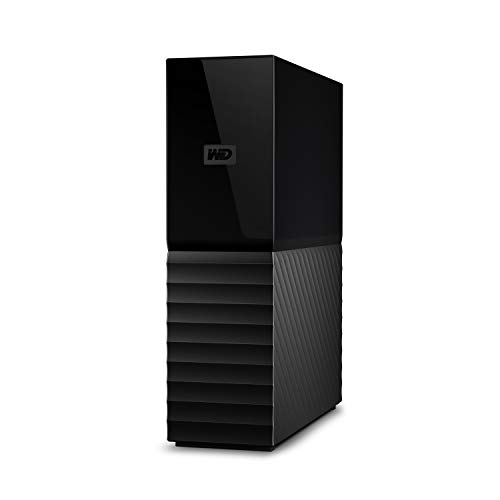
Once you have the photos off your phone, you’ll need a place to store them. This is a desktop external hard drive that is a good option.
What About Google Photos, iCloud, Dropbox, and Everything Else?
People often ask if they should use Google Photos, iCloud, Dropbox, OneDrive, or something else.
My answer is almost always the same:
The specific platform matters less than having a system.
Choose one cloud service. If you are already using one, that is probably your best option to stick with it.
Use it consistently.
Then make sure you have a second copy somewhere else.
That’s what really protects your photos.
One Final Thought
We spend a lot of time taking photos. We document birthdays. Vacations. Ordinary Tuesdays. The people we love.
The pictures themselves are easy to take. Protecting them takes a little more intention. But some day, one of those ordinary snapshots may become one of your most treasured possessions.
And that’s why it’s worth taking the time to keep them safe.
And if you found this helpful, let’s stay connected!
👉 Let’s talk about the photo organizing CRUISE? YOU are invited to join this fun Picture Person getaway! Check out The Great Photo Voyage and be sure and sign up soon, space is limited!
👉 Grab my free Photo Resource Guide – it’s packed with tools, apps, and simple steps to get started.
👉 Check out my book, Beyond the Storm – a powerful blend of true stories and practical advice for safeguarding your photos.
Check out Instagram and YouTube to get my latest information.